Moodle Archiving Worker
This page describes the installation of the archiving worker service, that is used in conjunction with the quiz activity archiving driver and the assignment activity archiving driver. It can be installed using multiple ways, though using Docker Compose is strongly recommended.
Works for quizzes and assignments
The archiving worker service is used for both the quiz and assignment activity archiving drivers. Therefore, it is only necessary to install the service once.
Deploying two different worker instances is possible, but neither required nor advised in most deployments.
Using the free public demo service
If you just want to try archiving quizzes or assignments without setting up your own archiving worker service, you can use the free public demo worker.
Notice
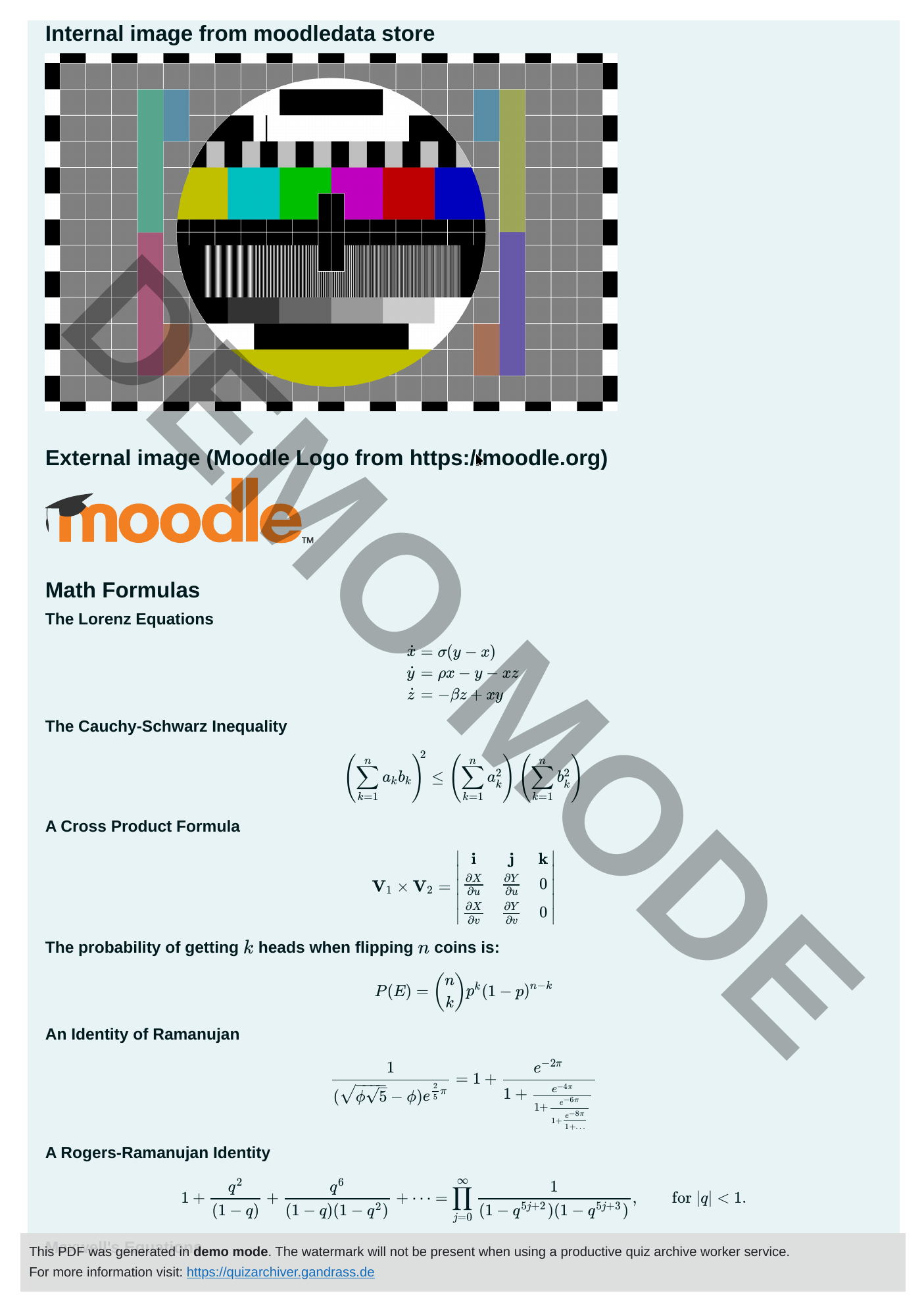
The public archiving worker service is running in demo mode. This means that a DEMO MODE watermark will be added to all generated PDFs (see screenshot below) and only a limited number of attempts / submissions will be exported.
Setting up your own archiving worker service removes these limitations. See below for setup instructions.
Warning
The public archive worker service must be able to access your Moodle instance via the internet to work. Local and private Moodle instances will not work with the demo worker.
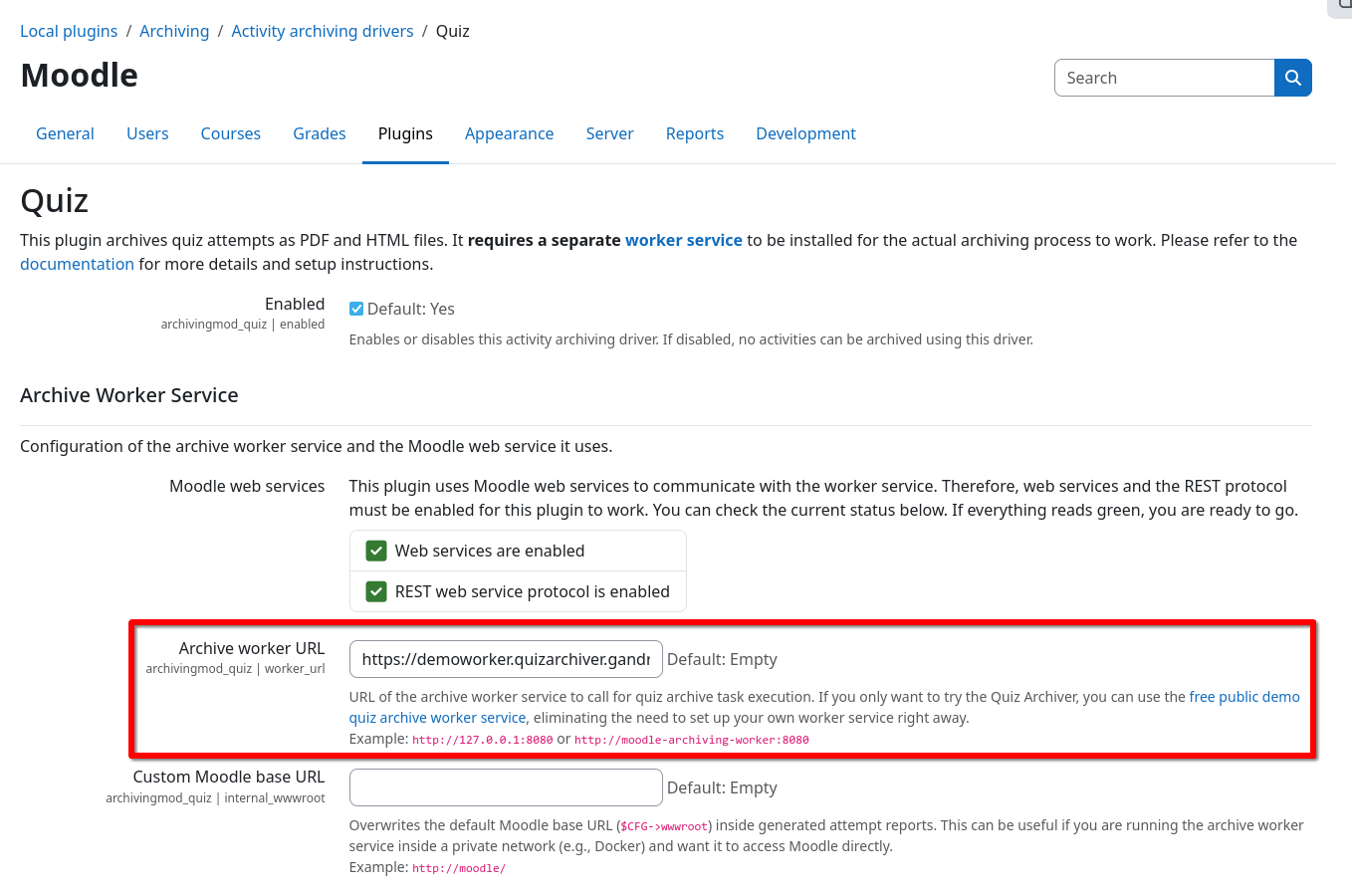
To use the free public demo worker, navigate to the archiving driver configuration page Site administration / Plugins / Local plugins / Archiving / Activity archiving drivers / Quiz and enter the following worker URL into the Archive worker URL field:
https://demoworker.quizarchiver.gandrass.de
The screenshots below show an example configuration of the quiz archiving driver using the public demo worker service and a generated PDF with the demo mode watermark:
Installation using Docker Compose
Suggested installation method
This is the suggested way of installing the archiving worker service 
- Install Docker and Docker Compose
- Create a
docker-compose.ymlinside amoodle-archiving-workerfolder with the following content:docker-compose.ymlservices: moodle-archiving-worker: image: ngandrass/moodle-archiving-worker:latest container_name: moodle-archiving-worker restart: always ports: - "8080:8080/tcp" environment: - MOODLE_ARCHIVER_LOG_LEVEL=INFO - From inside the
moodle-archiving-workerfolder, run the application:docker compose up
Changing the service port
You can change the port that the archiving worker service is exposed on to the Docker host by replacing the first
port number in the ports argument within the docker-compose.yml file.
ports:
  - "4242:8080/tcp"
Changing configuration values
You can change all configuration values by setting the respective environment variables inside
your docker-compose.yml. For more details and all available configuration parameters see
Configuration.
environment:
  - MOODLE_ARCHIVER_LOG_LEVEL=DEBUG
Running the application in the background
To run the application in the background, append the -d argument to your command:
docker compose up -d
Removing the application
To remove all created containers, networks and volumes, run the following command from inside the
moodle-archiving-worker folder:
docker compose down
Installation using Docker
Info
This is an alternative way of installing the archiving worker service using Docker directly.
- Install Docker
- Run a new container:
docker run -p 8080:8080 ngandrass/moodle-archiving-worker:latest
Changing the service port
You can change the host port the application is bound to by changing the first port number in the -p argument of
the docker run command.
docker run -p 4242:8080 moodle-archiving-worker:latest
Changing configuration values
You can change all configuration values by setting the respective environment variables. For more details and all available configuration parameters see Configuration.
docker run -e MOODLE_ARCHIVER_LOG_LEVEL=DEBUG -p 8080:8080 moodle-archiving-worker:latest
Building the image locally
You can also build the Docker image locally by executing the following steps:
- Install Docker
- Clone the Git repository:
git clone https://github.com/ngandrass/moodle-archiving-worker - Switch into the repository directory:
cd moodle-archiving-worker - Build the Docker image:
docker build -t moodle-archiving-worker:latest .1 - Run a container:
docker run -p 8080:8080 moodle-archiving-worker:latest
Manual Installation
Warning
This is the most complex way of installing the archiving worker service. Please try to use a Docker based installation if possible.
- Install Python version >= 3.11
- Install Poetry:
pip install poetry - Clone the Git repository:
git clone https://github.com/ngandrass/moodle-archiving-worker - Switch into the repository directory:
cd moodle-archiving-worker - Install app dependencies:
poetry install - Download Playwright browser binaries:
poetry run python -m playwright install --only-shell chromium - If PDF/A conversion is desired, install Ghostscript. See PDF/A Conversion for more details.
- Run the application:
poetry run python main.py
Changing configuration values
You can change configuration values by prepending the respective environment variables. For more details and all available configuration parameters see Configuration.
MOODLE_ARCHIVER_SERVER_PORT=4242 poetry run python main.py
Resource usage guidelines
The archiving worker is capable of processing multiple archive jobs in parallel. For each job, a separate browser context is spawned that renders the generated report. Therefore, the resource usage scales roughly with the number of parallel jobs.
For reference, each archiving job uses roughly 1 CPU and 1 GiB of RAM while processing. By default, up to four jobs are executed simultaneously.
Warning
For complex or large quizzes, you may want to increase the amount of RAM provisioned beyond the default reference.
Changing the number of parallel jobs
By default, the archiving worker will process up to 4 jobs in parallel. You can adjust the number of parallel jobs manually via the corresponding environment variable.
Example:
MOODLE_ARCHIVER_PARALLEL_JOBS=2
For more details on all available configuration parameters see Configuration.
Configuration
Configuration parameters are located inside config.py and can be overwritten using the following environment variables:
| Environment Variable | Default | Description |
|---|---|---|
MOODLE_ARCHIVER_SERVER_HOST |
0.0.0.0 |
Host to bind to |
MOODLE_ARCHIVER_SERVER_PORT |
8080 |
Port to bind to |
MOODLE_ARCHIVER_LOG_LEVEL |
INFO |
Logging level. One of the following: 'CRITICAL', 'FATAL', 'ERROR', 'WARN', 'WARNING', 'INFO', 'DEBUG' |
MOODLE_ARCHIVER_QUEUE_SIZE |
8 |
Maximum number of jobs to enqueue |
MOODLE_ARCHIVER_PARALLEL_JOBS |
4 |
Number of worker threads to process archive jobs in parallel. Value has to be greater than 0 |
MOODLE_ARCHIVER_HISTORY_SIZE |
128 |
Maximum number of jobs to remember in job history |
MOODLE_ARCHIVER_ZIP_COMPRESSION_ALGO |
DEFLATED |
Compression algorithm to use for ZIP archives. Use DEFLATED for compatibility with Windows and MacOS.Possible values are: STORED (no compression), DEFLATED (light compression, default), BZIP2 (medium compression), and LZMA (strong compression). |
MOODLE_ARCHIVER_STATUS_REPORTING_INTERVAL_SEC |
15 |
Number of seconds to wait between job progress updates |
MOODLE_ARCHIVER_REQUEST_TIMEOUT_SEC |
3600 |
Maximum number of seconds a single job is allowed to run before it is terminated |
MOODLE_ARCHIVER_BACKUP_STATUS_RETRY_SEC |
30 |
Number of seconds to wait between backup status queries |
MOODLE_ARCHIVER_DOWNLOAD_MAX_FILESIZE_BYTES |
(1024 * 10e6) |
Maximum number of bytes a generic Moodle file is allowed to have for downloading |
MOODLE_ARCHIVER_BACKUP_DOWNLOAD_MAX_FILESIZE_BYTES |
(512 * 10e6) |
Maximum number of bytes Moodle backups are allowed to have |
MOODLE_ARCHIVER_QUESTION_ATTACHMENT_DOWNLOAD_MAX_FILESIZE_BYTES |
(128 * 10e6) |
Maximum number of bytes a question attachment is allowed to have for downloading |
MOODLE_ARCHIVER_REPORT_BASE_VIEWPORT_WIDTH |
1240 |
Width of the viewport on attempt rendering in px |
MOODLE_ARCHIVER_REPORT_PAGE_MARGIN |
'5mm' |
Margin (top, bottom, left, right) of the report PDF pages including unit (mm, cm, in, px) |
MOODLE_ARCHIVER_WAIT_FOR_READY_SIGNAL |
True |
Whether to wait for the ready signal from the report page JS before generating the export |
MOODLE_ARCHIVER_WAIT_FOR_READY_SIGNAL_TIMEOUT_SEC |
30 |
Number of seconds to wait for the ready signal from the report page JS before generating the export |
MOODLE_ARCHIVER_CONTINUE_AFTER_READY_SIGNAL_TIMEOUT |
False |
Whether to continue with the export if the ready signal was not received in time |
MOODLE_ARCHIVER_WAIT_FOR_NAVIGATION_TIMEOUT_SEC |
30 |
Number of seconds to wait for the report page to load before aborting the job |
MOODLE_ARCHIVER_PREVENT_REDIRECT_TO_LOGIN |
True |
Whether to supress all redirects to Moodle login pages (/login/*.php) after page load |
MOODLE_ARCHIVER_DEMO_MODE |
False |
Whether the app is running in demo mode. In demo mode, a watermark will be added to all generated PDFs, only a limited number of attempts will be exported per archive job, and only placeholder Moodle backups are included |
MOODLE_ARCHIVER_PROXY_SERVER_URL |
None |
URL of the proxy server to use for all playwright requests. HTTP and SOCKS proxies are supported. If not set, auto-detection will be performed. If set to false, no proxy will be used |
MOODLE_ARCHIVER_PROXY_BYPASS_DOMAINS |
None |
Comma-separated list of domains that should always be accessed directly, bypassing the proxy |
MOODLE_ARCHIVER_SKIP_HTTPS_CERT_VALIDATION |
False |
Whether to skip validation of TLS / SSL certs for all HTTPS connections |
MOODLE_ARCHIVER_PDFA_CONVERSION |
True |
Whether to convert exported attempt PDF files into a PDF/A compliant format |
MOODLE_ARCHIVER_PDFA_CONVERSION_TIMEOUT_SEC |
30 |
Number of seconds to wait before conversion process is aborted |
MOODLE_ARCHIVER_PDFA_CONVERSION_GHOSTSCRIPT_BINARY_PATH |
None |
Path to the ghostscript binary that should be used for PDF/A conversion. If left unset, this will be detected automatically. |
Archive Compression
You can choose between different compression algorithms for the generated archive files. By default, DEFLATE is used to allow for maximum compatibility with Windows, MacOS, and Linux. The downside of the high compatibility is, that the compression ratio is rather low, resulting in larger archive files.
If you need stronger compression, you can choose between different compression algorithms by setting the
MOODLE_ARCHIVER_ZIP_COMPRESSION_ALGO environment variable to one of the following values:
STORED: No compression, just store the files in the archiveDEFLATED: Light compression, compatible with everythingBZIP2: Medium compression, might require additional software like 7-ZipLZMA: Strong compression, might require additional software like 7-Zip
Tip
Please note that changing this setting will only affect newly created archives. Existing archives will remain unchanged.
PDF/A Conversion
The archiving worker can produce PDF/A-3b compliant PDF files. PDF/A is an ISO-standardized version of the PDF format that is designed for long-term archiving and preservation of electronic documents. It ensures that the PDF files can be displayed exactly the same way in the future, regardless of the software used to create or view them.
For converting generated PDF files into a PDF/A-3b compliant format, the external dependency Ghostscript is required. If you are using the official Docker image, Ghostscript is already included and configured properly. If you are installing the worker service manually, please refer to the Manual Installation section above.
Switching between PDF and PDF/A format
PDF/A conversion is enabled by default, but can be disabled by setting:
MOODLE_ARCHIVER_PDFA_CONVERSION = False
Using a specific Ghostscript installation
The location of your Ghostscript binary is automatically detected on startup. If automatic detection fails, or you want to use a specific Ghostscript distribution, you can set the path to your Ghostscript binary manually via the corresponding environment variable.
MOODLE_ARCHIVER_PDFA_CONVERSION_GHOSTSCRIPT_BINARY_PATH=/bin/gs
Proxy Servers
Should your archiving worker be required to access your Moodle instance and other resources through a proxy server, both HTTP and SOCKS proxies are supported. You have multiple options to configure the proxy settings as described below.
Using proxy server auto-detection
If no further configuration is performed, the archive worker will automatically try to detect and use your default system proxy.
During auto-detection, the archive worker looks inside the following environment variables for proxy configuration data (first match takes precedence):
http_proxy,HTTP_PROXY,https_proxy,HTTPS_PROXY,all_proxy,ALL_PROXY
In each case, a full proxy URL including protocol, port and eventually credentials for authenticating at the proxy server is expected. Examples:
http://proxy.example.com:3128http://10.0.0.2:3128socks5://foo.bar:1080http://user:password@myproxy:3128
Setting the environment variables for proxy servers using Docker
If you are deploying the archive worker service using Docker, you can set the environment variables for the proxy
server either for the archive worker service specifically inside your docker-compose.yml file or globally inside
your Docker client2.
environment:
  - HTTP_PROXY=http://proxy.example.com:3128
Using a specific proxy server
You can bypass automatic proxy detection, hereby not using your systems default proxy, by setting the
MOODLE_ARCHIVER_PROXY_SERVER_URL environment variable to the URL of your desired proxy server.
Disabling proxy server and auto-detection
To disable automatic proxy detection and use no proxy at all, set the MOODLE_ARCHIVER_PROXY_SERVER_URL environment
variable to False.
Bypassing the proxy for certain domains
The archive worker is also able to bypass the proxy server for a given list of comma-separated domains. During automatic
proxy detection, the environment variables no_proxy and NO_PROXY are scanned and listed domains will bypass the
proxy.
If manual proxy configuration is used, you can instead set the MOODLE_ARCHIVER_PROXY_BYPASS_DOMAINS environment
variable to a comma-separated list of domains that will always bypass the proxy server.
-
The
.at the end of thedocker buildcommand must be part of the command. It specifies the current directory as the build context. ↩ -
You can find details on how to set a global proxy for your Docker client in the official Docker documentation. Be aware, that you the configuration only applies to new containers and builds, and doesn't affect existing containers. Therefore, you need to re-create all pre-existing containers in order to apply the new proxy settings. ↩