Archive Signing (TSP)
Archives and their creation date can be digitally signed by a trusted authority using the Time-Stamp Protocol (TSP) according to RFC 3161. This can be used to cryptographically prove the integrity and creation date of the archive at a later point in time. Archives can be signed automatically during creation.
Enabling Archive Signing
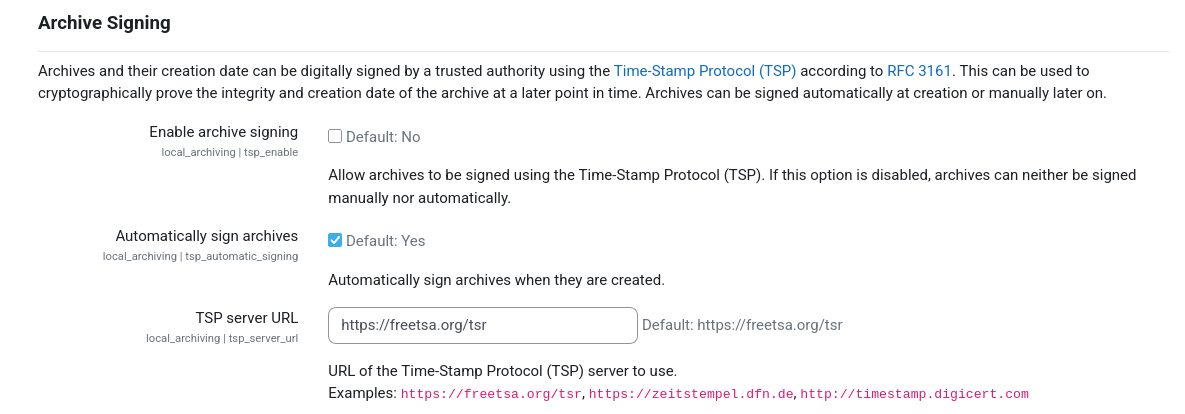
Prior to the first use of the archive signing function, the TSP service must be set up once within the plugin settings. To do so, a Moodle administrator has to follow these steps:
- Navigate to Site Administration / Plugins / Local plugins / Archiving / Common settings
- Set
tsp_server_urlto the URL of your desired TSP service - Globally enable archive signing by checking
tsp_enable - Enable automatic archive signing by checking
tsp_automatic_signing - Save all settings
Accessing TSP Data
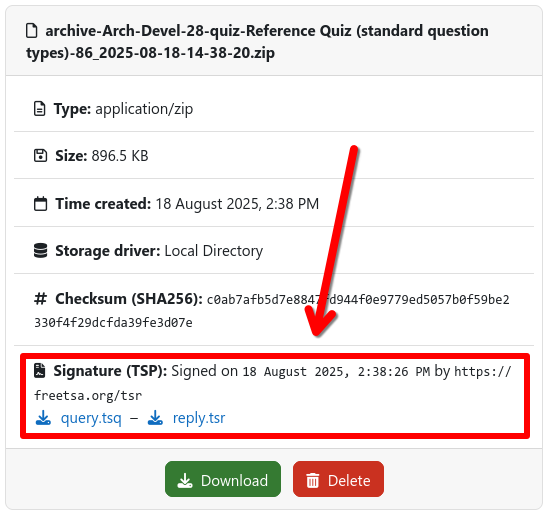
If enabled as described above, new archives will be automatically signed during creation. The generated TSP signatures
can then be accessed via the artifact download page of the respective archive job. This includes both the
TSP query (.tsq) that was sent to the TSP service as well as the TSP response (.tsr) that contains the actual
signature.
Validating an Archive and Signature
To validate an archive and its signature, install openssl and conduct the following steps:
- Obtain the certificate files from your TSP authority (
.crtand.pem)1 - Download the archive and both TSP files (
.tsqand.tsr) - Inspect the TSP response to see the timestamp and signed hash value
- Execute:
openssl ts -reply -in reply.tsr -text
- Execute:
- Verify the archive (
<archive>.zip) against the TSP response (reply.tsr). This process confirms that the archive was signed by the TSP authority and that the archive was not modified after signing, i.e., the hash values of the file matches the TSP response.- Execute:
openssl ts -verify -in <archive>.tsr -data <archive>.zip -CAfile <tsa>.pem -untrusted <tsa>.crt - Verify that the output is
Verification: OK
Errors are indicated byVerification: FAILED
- Execute:
- (Optional) Verify that TSP request and TSP response match
- Execute:
openssl ts -verify -in <archive>.tsr -queryfile <archive>.tsq -CAfile <tsa>.pem -untrusted <tsa>.crt - Verify that the output is
Verification: OK
Errors are indicated byVerification: FAILED
- Execute:
-
The certificate must be given by your TSP authority. You can usually find it on the website of the service. ↩