Archive Creation
The archive creation form can be reached from the course archiving overview by clicking on the desired activity or directly from within the activity by clicking on More / Archiving inside the secondary navigation.
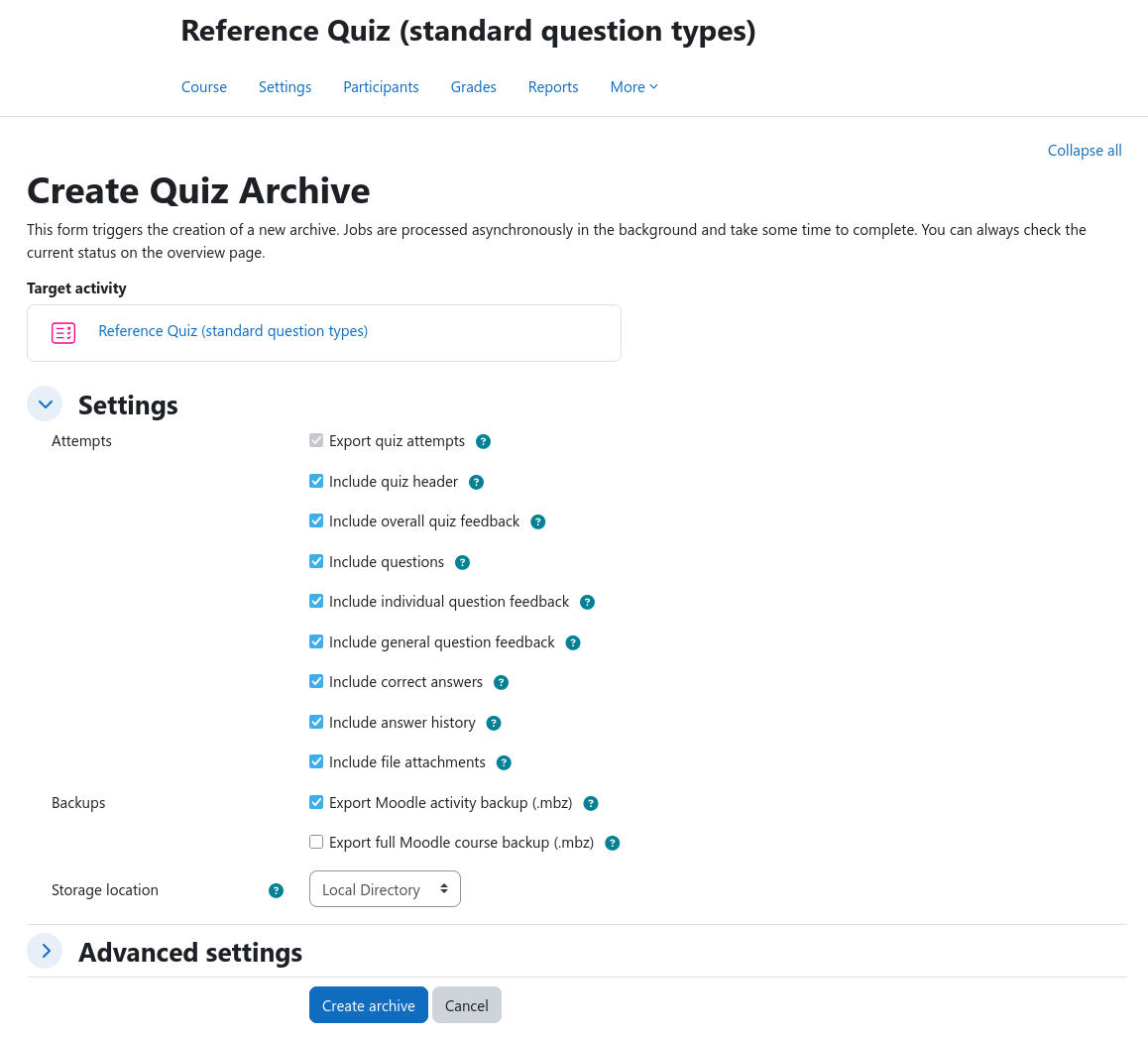
The form elements largely depend on the targeted activity type. In the example above, a quiz activity is being archived. All settings feature a comprehensive help text that explains their effect in detail. It can be accessed by hovering over the question mark symbol next to each setting.
To create the archiving job, click the Create archive button at the bottom of the form. You should now see a confirmation message and a newly created job in the table at the bottom of the page. You can monitor the progress of the archive job by clicking on the refresh button in the top right corner of the table or by navigating to the job logs page of the respective archive job.
If you wish to select another activity, use the Cancel button to return to the archiving overview without creating a new job.
Locked settings
Some settings might be locked by the administrator to enforce organization-wide policies. Locked settings are indicated by a greyed-out appearance and can not be changed by the user.